Model and animation
The Model tab
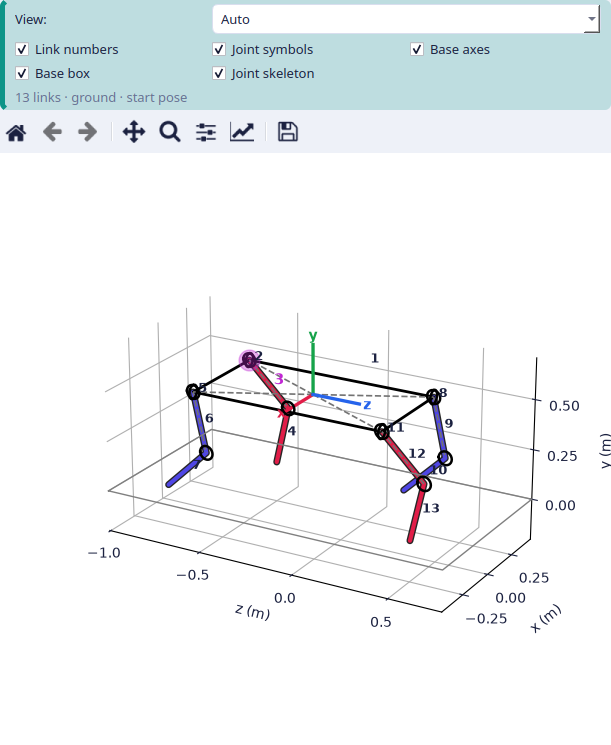
The Model tab draws the robot as it is in the table and the text, in its start pose: the one
the forward-dynamics run starts from. It uses the drawing described by the model's scene:,
the same drawing as the animation.
Above the drawing:
- View: Auto (the animation's view), Front, Top, Side, Isometric, Front, turned a little and 3-D view. In Auto you can turn the 3-D view with the mouse and it keeps its rotation while you edit. A planar robot, one whose links all lie in one vertical plane (the space robot and the biped), is shown flat in Auto: the plane of the robot, with its two axes and no depth, as in the animation. 3-D view shows it in 3-D instead. A robot that is not planar, or that lies flat on the floor (a car), is always shown in 3-D.
- Link numbers writes the number of each link on it.
- Joint symbols draws a ring round the axis of each revolute joint and a bar along the axis of each prismatic joint.
- Base axes draws the axes of the trunk (x red, y green, z blue).
- Base box and Joint skeleton, below.
Click a row of the Links table and that link gets a halo and a larger number in the drawing.
The base box
The trunk is drawn as a box with the size that its mass and inertia imply:
Ixx = m (sy² + sz²) / 12 and the same for the other two axes. A 500 kg base with an inertia
of 83.61 kg m² on each axis is a cube of 1 m. This shows how big the body is, and how the arms
or legs are attached to it.
Three cases get no box: a trunk with no mass, an inertia that no box has (a thin rod), and a
model whose scene: already outlines the trunk with body: (the quadruped, Spot and the
hexapod). A model that sets its own boxes in the scene: (the Pioneer) keeps them. Switch the option off
with the Base box checkbox. A body that is not a box, such as a flat plate with a much
larger inertia on one axis, is still drawn as the box with the same inertia: give the model
its own boxes for a different shape.
The joint skeleton
Joint skeleton draws a dashed line from the origin of every link to the origin of its parent, so the arms and legs are joined to the trunk. The origins are the joints, not the centres of mass. Switch it off with its checkbox.
Both options are also used in the Animation tab and in the exported animation, so the picture is the same everywhere.
The Animation tab
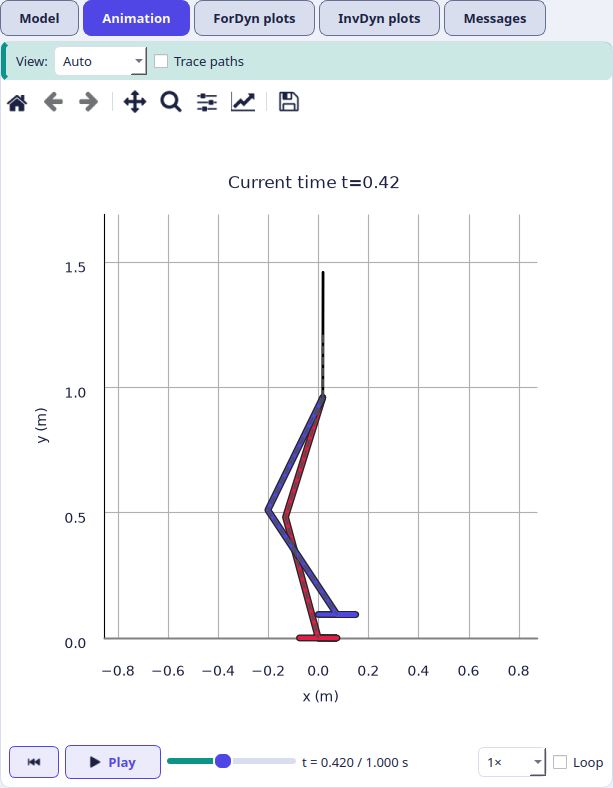
The animation player is the one of the fixed-base window: a slider to jump to any time, play
and pause (Space), a speed from slow motion to fast, Loop, and the standard 3-D views.
For a robot that travels far the view follows it over a floor grid (follow: in the scene).
The plots
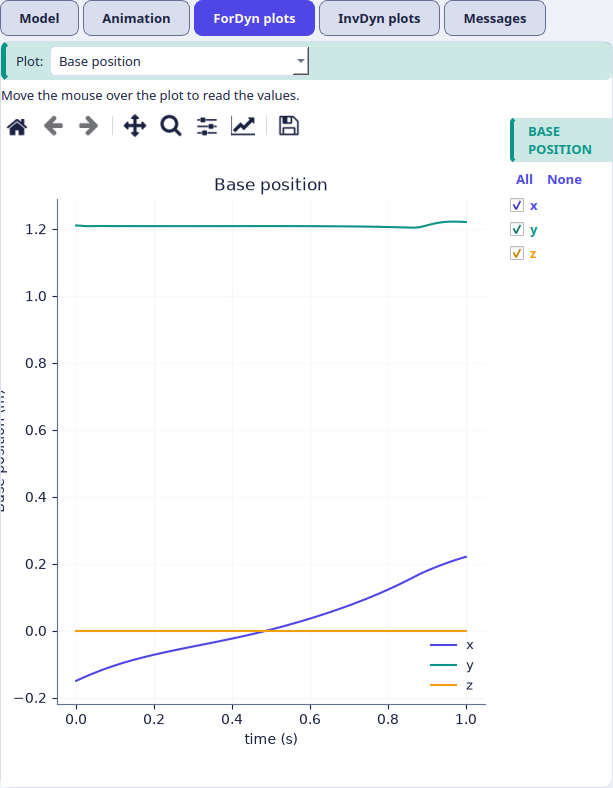
The plots are chosen from a list, with a read-out when you move the mouse over a plot. The plots of a floating-base robot:
| plot | what it shows |
|---|---|
| Base position, Base orientation | the trunk's position and Euler angles over time |
| Base velocity, Base angular velocity | its linear and angular velocity |
| Joint positions, velocities, torques / forces | the joints, with the column JOINTS (one checkbox per joint, shared by these plots). The torques are the ones the controller applies in forward dynamics, and the ones needed in inverse dynamics |
| Energy | potential, kinetic, actuator, total and ground energy |
| Ground force, Foot height | for a robot on the ground: the total ground force, and the lowest point of each link |
| Wheel forces | for a wheeled robot: the tyre force at each contact point |
Every plot has a column of checkboxes on the right, one per curve, in the colour of the curve, with All and None: Base position lists x, y and z, Energy lists potential, kinetic, actuator, total and ground, Wheel forces lists each wheel and axis, and so on. Hiding a curve rescales the axes and removes it from the legend. Each plot except the joint plots keeps its own choice. See Results.
The Export menu saves the current plot (PNG, PDF or SVG), all the plots as PNG files, the animation (GIF or MP4) and the numbers as CSV. See Results and Export.